Guides
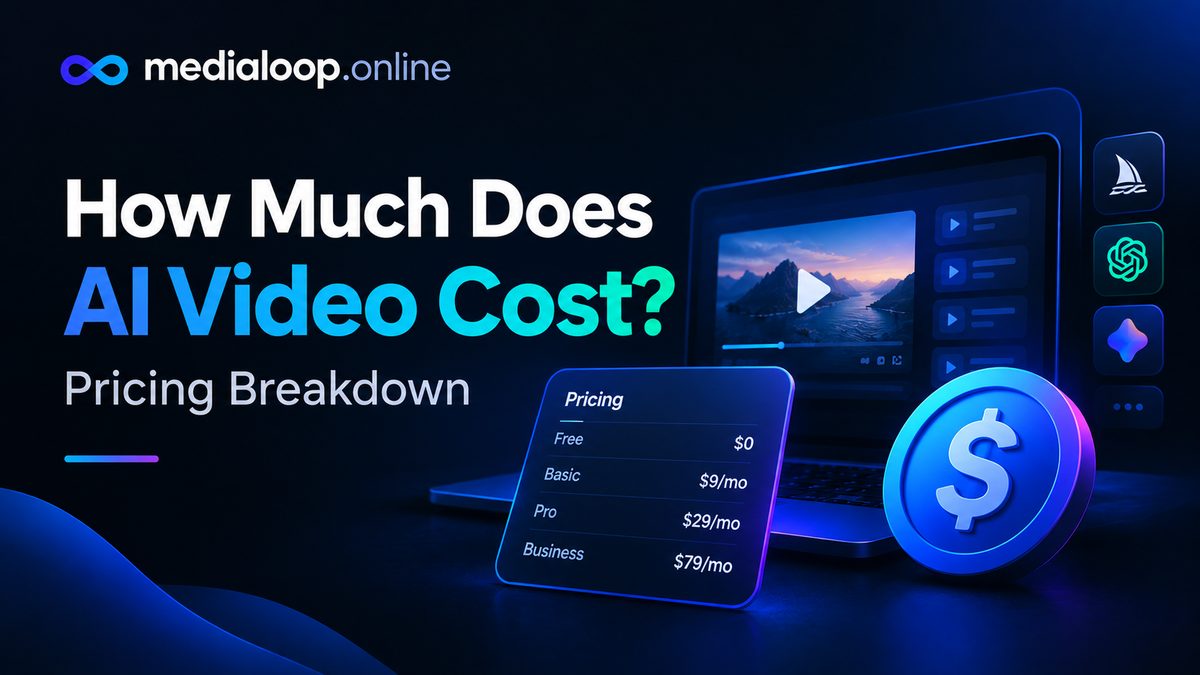
How Much Does AI Video Cost? Pricing Breakdown
How much does AI video cost in 2026? Honest pricing breakdown: subscriptions, per-video costs, free tiers, and what creators actually spend per month.
Good voiceover carries a video. Bad voiceover — flat, robotic, mispronounced — sinks it in seconds, no matter how good the visuals are. AI voiceover has quietly become good enough that most viewers can't distinguish it from a competent human narrator, and it's now a standard step in faceless videos, ads, explainers, and course content.
This guide covers the full workflow — from script prep to final mix — and compares five tools worth considering in 2026. As always with this fast-moving space: feature details and pricing change often, so verify specifics on official sites before committing.
Regardless of which tool you pick, the process is the same. Get this right and the tool choice matters less.
Written text and spoken text are different languages. Before pasting anything into a voice tool:
Target pacing: English narration runs about 800–900 characters per minute. A 60-second video needs roughly 850 characters of script — count before you generate, not after.
Don't pick the first voice that sounds good — pick the voice that fits the content:
Preview at least three to five options reading your actual script, not the demo sentence. A voice that sounds great saying "Hello, welcome" can sound wrong delivering your content.
Generate the voiceover in chunks — intro, body sections, outro separately — rather than one long file. Reasons:
Listen to the full voiceover at normal speed and fix:
Descript's voiceover story is part of a bigger idea: edit audio and video by editing text. Its AI voices (including voice cloning of your own voice) are excellent, and the killer feature is iteration — change a word in the transcript and the voiceover updates. For creators whose content starts as speech, nothing else is this fast.
Strengths: superb voice quality, text-based editing, voice cloning, filler-word removal. Weaknesses: it's an editor first — if you only need standalone TTS, it's more tool than necessary. Best for: podcasters, course creators, talking-head videos, anyone iterating on spoken scripts.
VEED bundles AI voiceover with a full browser-based editor: generate the voice, drop it on the timeline, auto-generate captions, translate — all without leaving the tab. The voices are natural and the workflow is the selling point: no exporting between apps.
Strengths: no installs, great captions, solid voices, generous free tier for testing. Weaknesses: voice customization is lighter than dedicated TTS tools. Best for: social content creators who want voiceover inside their editing workflow.
There's a category of tools that do one thing — text-to-speech — at the highest quality level. These offer the most voices, the finest control over emotion and pacing, and typically the best multilingual support. The tradeoff: they're a separate step in your workflow (generate audio, import into your editor).
Strengths: best-in-class voice realism, huge voice libraries, fine-grained controls. Weaknesses: another subscription, another app in the chain; costs scale with characters generated. Best for: creators where voice quality is the product — audiobooks, premium faceless channels, multilingual publishing.
If your workflow is "script in, finished video out," Pictory's integrated AI voices remove a step entirely. The voices are perfectly serviceable for explainer and faceless content, and not having to round-trip audio between tools saves real time at volume.
Strengths: zero-friction workflow, good enough quality for most use cases, many languages. Weaknesses: less voice selection and control than dedicated tools. Best for: high-volume faceless video where speed beats voice perfection.
Free editors increasingly ship decent AI voiceover built in. The quality won't match paid specialists, but for testing ideas, drafts, and zero-budget starts, they're genuinely usable — and the workflow (voice generated right on the timeline) is convenient.
Strengths: free, integrated, good enough for drafts and casual content. Weaknesses: limited voices, less natural delivery, fewer languages. Best for: beginners, drafts, and anyone validating ideas before spending.
| Tool | Voice quality | Workflow fit | Languages | Pricing structure |
|---|---|---|---|---|
| Descript | Excellent | Editor-integrated | Strong | Subscription tiers |
| VEED | Very good | Browser editor | Strong | Freemium subscription |
| Dedicated TTS tools | Best-in-class | Standalone audio | Excellent | Usage/character-based |
| Pictory voices | Good | Script-to-video | Good | Included in subscription |
| Free editor voices | Decent | Timeline-integrated | Basic | Free |
The best ones? Rarely, in finished content with music and pacing. Weaker ones, yes — flat delivery and odd emphasis give them away. Voice selection and script prep matter more than which tool you use.
Yes — using a licensed AI voice in your own content is standard practice. What's not okay: cloning a real person's voice without permission, or using voices in ways the tool's terms prohibit. Read the terms.
Many tools include voiceover in their subscription ($15–50/month typical ranges, but check official sites — pricing changes often). Usage-based TTS tools charge per character; a 10-minute video might cost a few dollars in characters.
Free tiers of VEED and built-in voices in free editors cover zero-budget needs. Quality is decent for drafts and casual content; paid tools are noticeably better for published work.
If you're a personal brand publishing regularly, cloning your voice gives consistency and saves re-recording. Only clone your own voice (with the tool's verification), and keep the source recordings secure.
Generate the translated script first (have it checked by a speaker if it matters), then generate voiceover in each language. Most major tools support dozens of languages — test voice quality per language before committing to a series.
Links below may earn us a commission at no extra cost to you.
How much does AI video cost in 2026? Honest pricing breakdown: subscriptions, per-video costs, free tiers, and what creators actually spend per month.
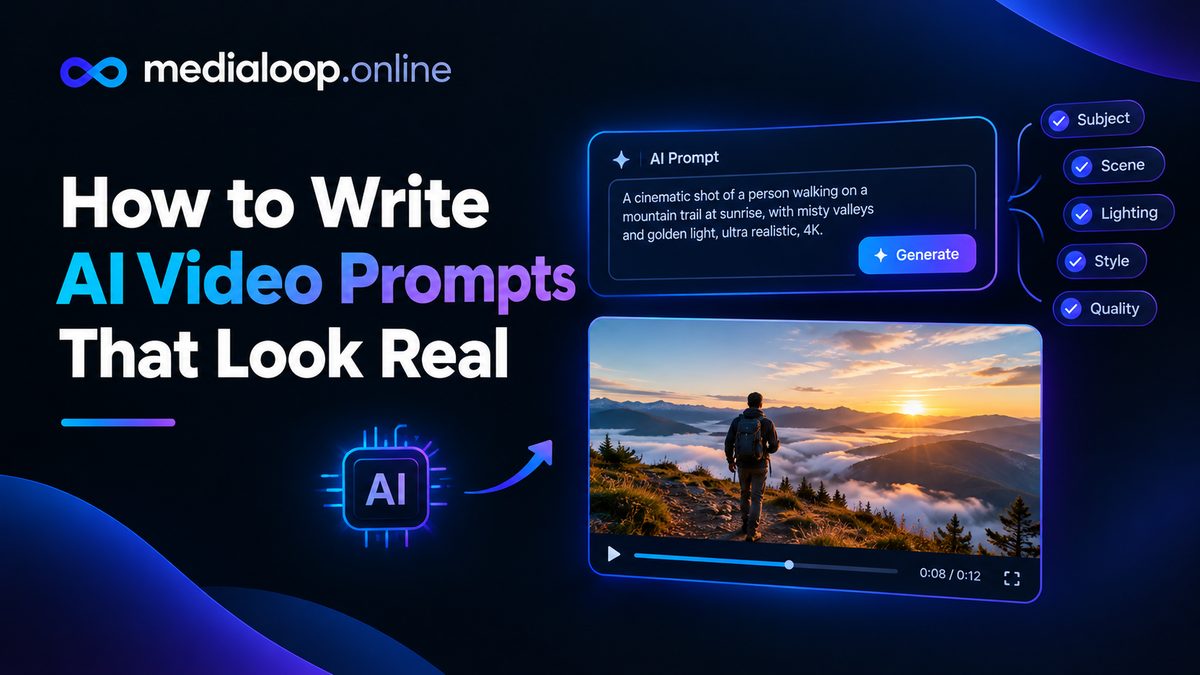
Learn how to write AI video prompts that look real: subject, motion, camera, lighting, and negative prompts. Practical prompting craft with examples for 2026.
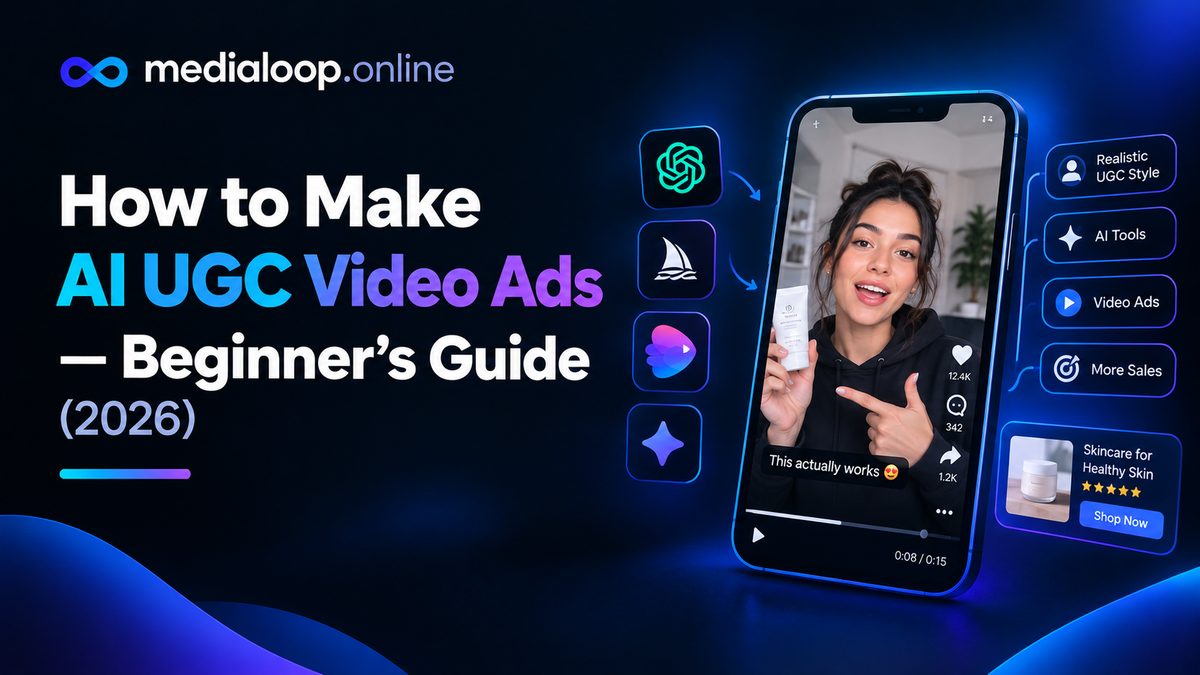
Learn how to make AI UGC video ads step by step in 2026: scripting, AI avatars, voiceovers, editing, and where to run them. A practical beginner's guide.